omnicus.github.io
How to enable and use the SimCom integration
Like other integrations, you need to be an admin in order to enable the SimCom integration.
The SimCom integration allows you to receive incoming calls to queues in Omnicus.
Step 1
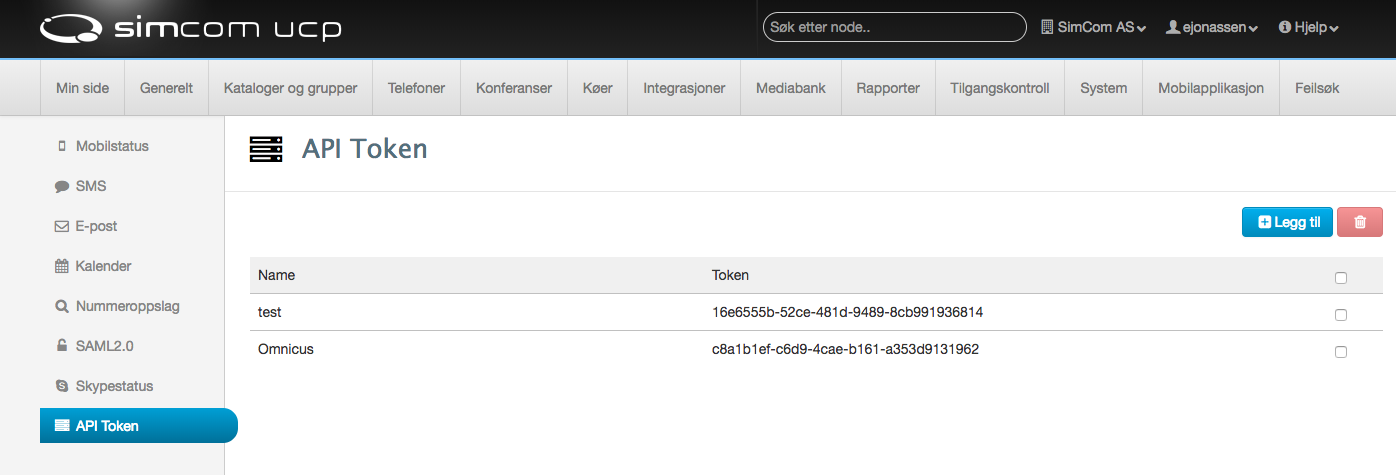
Create a API token on your SimCom account.
Navigate to Integrations -> API token in the UI
Step 2
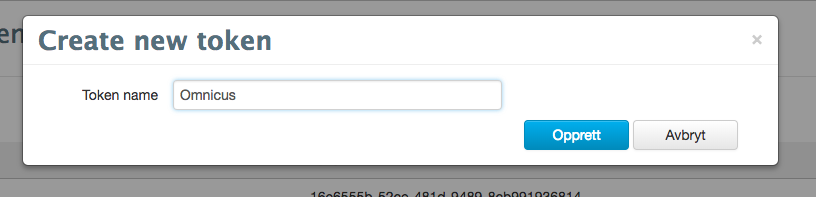
Click “Add”-button and name your token. We suggest naming it Omnicus for conveniance.
Step 3
Head over to your Omnicus admin page for your account;
https://< your-domain >.omnicus.com/admin
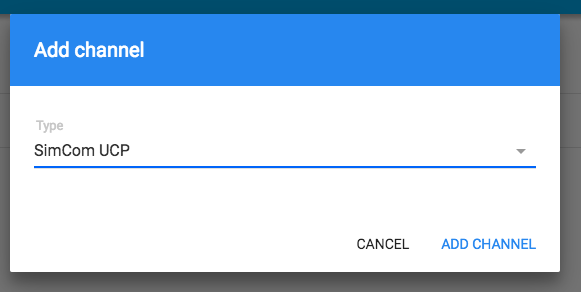
Go to “Queues”, select the Queue you want to add a SimCom queue and click on “Channels”. Click the “Add”-button and select SimCom UCP from the list.
Step 4
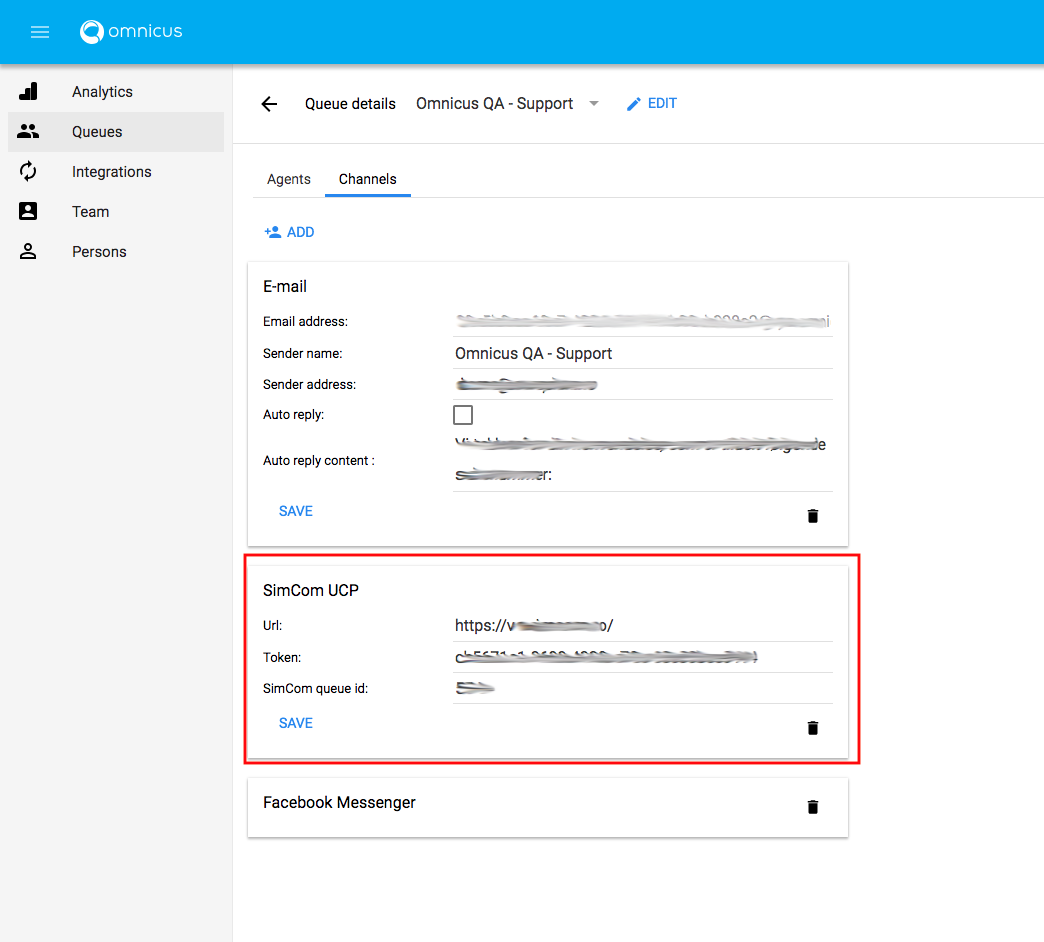
Enter the URL to your SimCom UCP server. Copy and paste the URL API token from your SimCom UCP portal.
Step 5
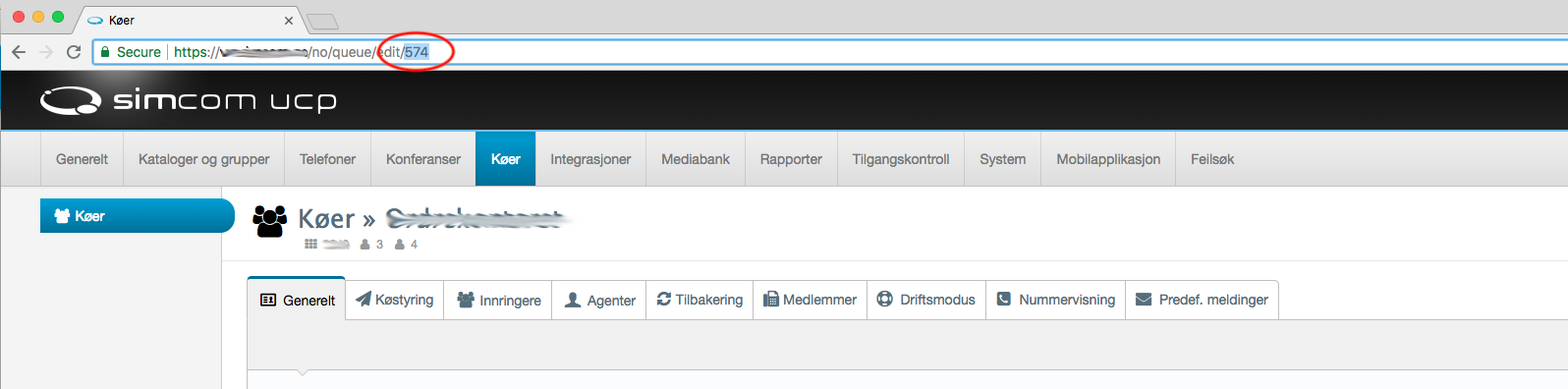
Select the SimCom queue ID that you would like to connect with Omnicus. Navigate to the queue in SimCom and copy the queue id from the URL.
Step 6
Copy and paste the queue id into Omnicus.
Step 7
Navigate to “Agents”-tab in the Queue settings within Omnicus. Select the agent that should handle incoming calls from SimCom, and click the checkbox for SimCom UCP and add his SIP-username from SimCom.
